Table of Contents
Step 1: Preparing Your Firestick (Developer Options)
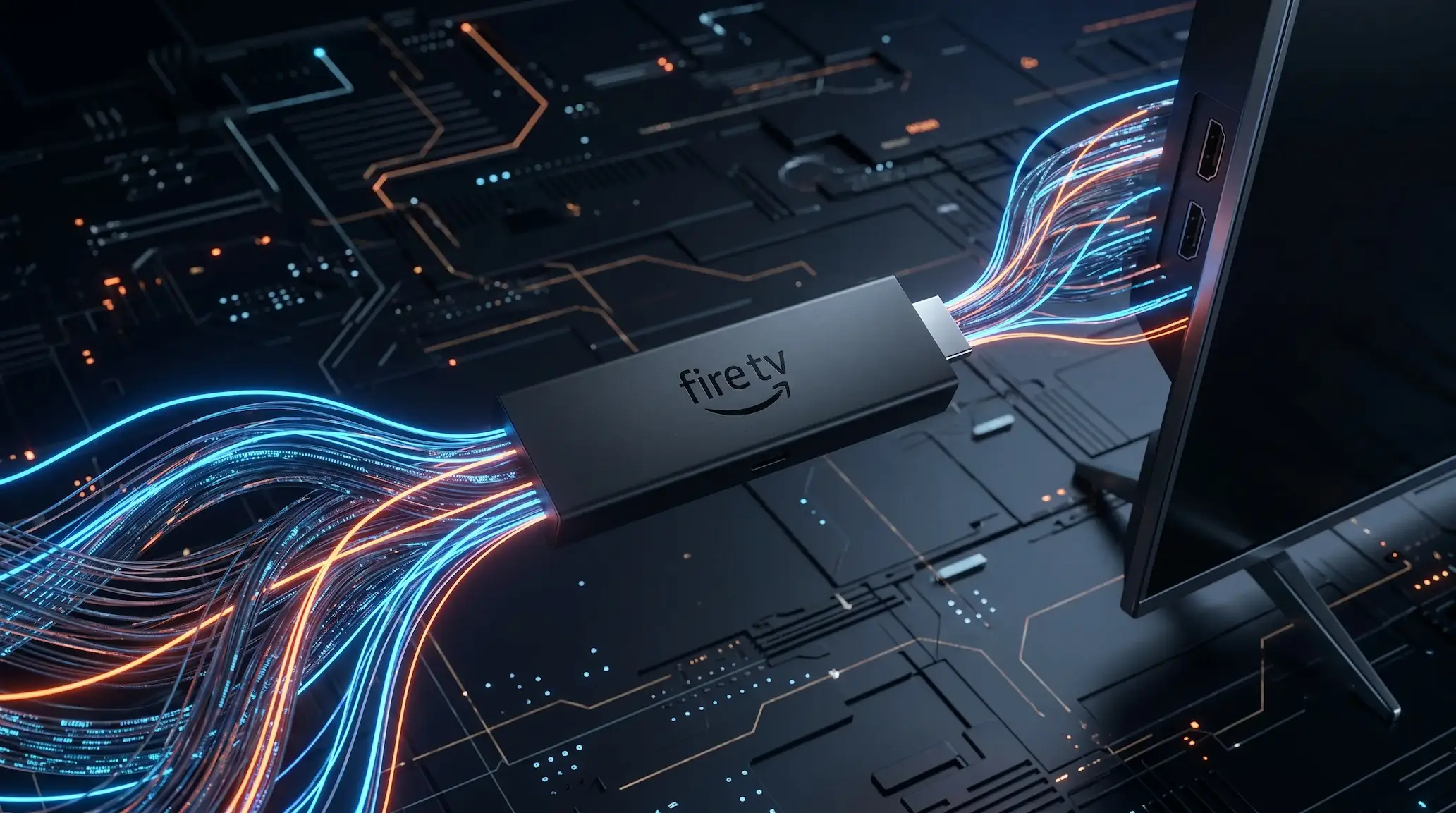
Before installing any third-party applications, you need to enable developer privileges on your Amazon Firestick. Go to Settings > My Fire TV > About. Click on your device name (e.g., Fire TV Stick 4K Max) rapidly 7 times until a message appears saying: "No need, you are already a developer."
Go back one level to access the newly revealed Developer Options menu, and ensure Apps from Unknown Sources is toggled to ON.
Step 2: Installing Downloader App
Navigate back to the Firestick Home Screen, open the Appstore, search for Downloader, and install it. This orange-themed utility is the primary tool used to sideload Android APKs onto your television box.
Step 3: Downloading Kemo IPTV APK
Open Downloader and click on the URL input field. Enter the direct download code or URL provided in your activation email, or search for the Kemo IPTV APK file. Press Go to begin the downloading process. Once complete, click Install and then confirm by clicking Done.
Step 4: Configuring with Xtream Codes
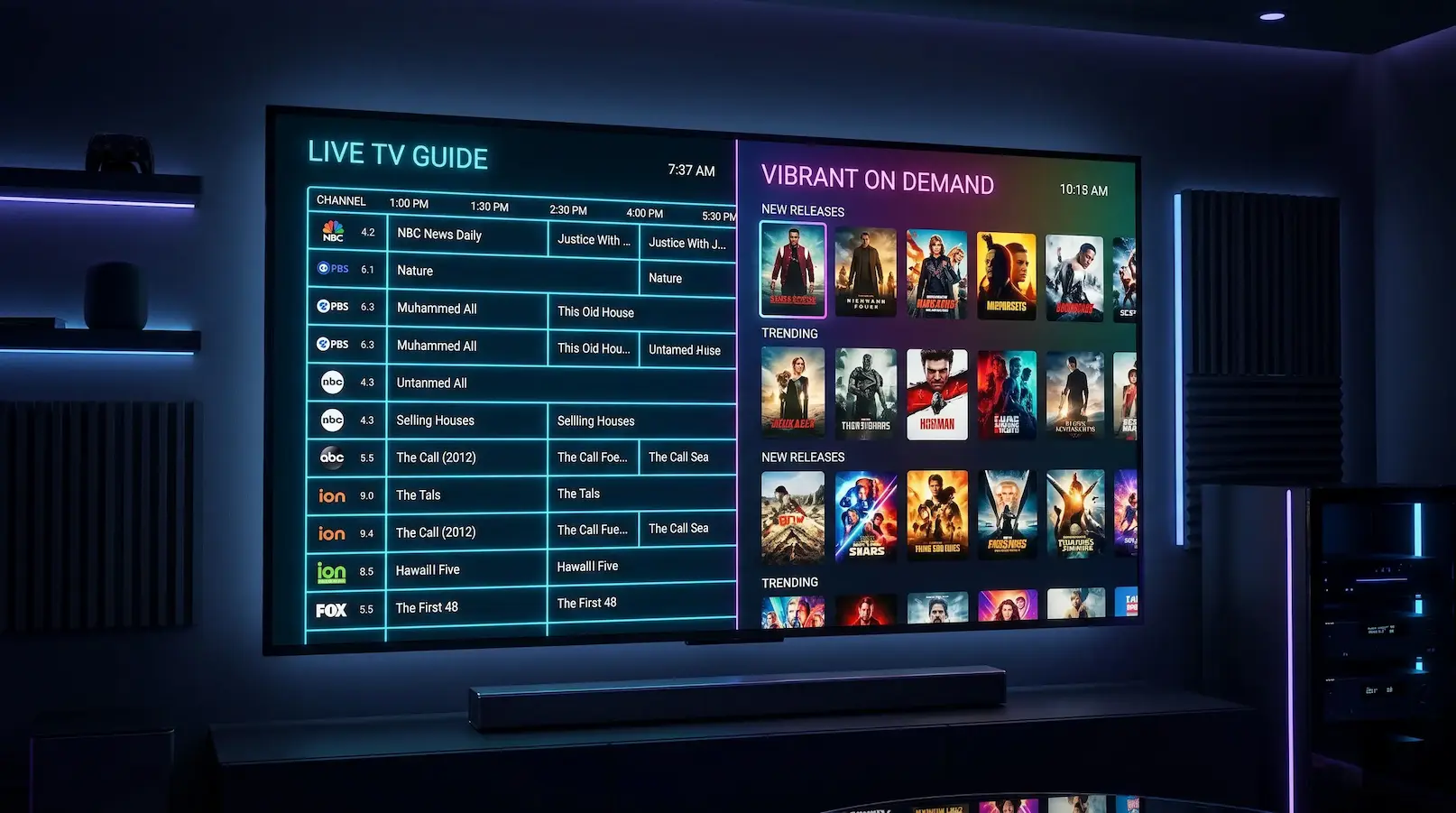
Launch the newly installed Kemo IPTV application. Select Login with Xtream Codes API. Input the server portal URL, username, and password provided upon purchasing your Kemo subscription. Within seconds, your live channels, EPG tv guide, and video-on-demand library will synchronize automatically.