Table of Contents
Direct Answer for Google Featured Snippets: To fix the "IPTV Smarters failed to authorize" error, verify that there are no trailing spaces or capitalization errors in your username and password, ensure your Portal URL includes the correct port number (e.g., :80 or :8080), clear the IPTV Smarters app cache, and connect to a premium VPN to bypass potential ISP protocol blocks [11.1, 18].
What is the "Failed to Authorize" Error?
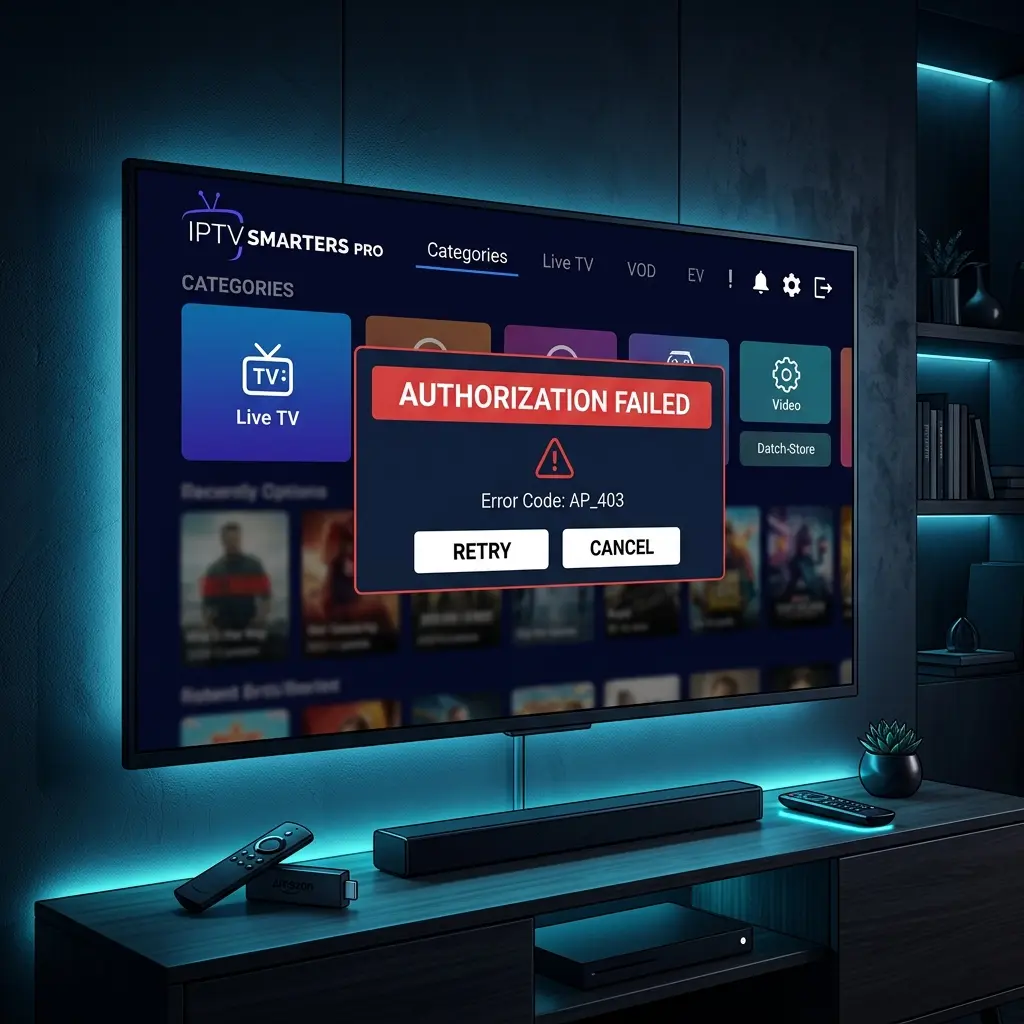
If you're staring at an "Authorization Failed" error on your IPTV Smarters app, don't panic. This is a very common issue that occurs when the local media player cannot establish a secure database handshake with your provider's remote Xtream Codes API middleware.
While most users assume their account has been deleted, it almost always boils down to one of four simple network or input errors. Let's walk through exactly how to diagnose and resolve them in under three minutes [11.1].
1. Deciphering the Xtream Codes Syntax
The most common reason for an authorization failure is a simple typo. The Xtream Codes login system is extremely sensitive to input errors, and typing on a Firestick remote makes typos highly likely.
Capitalization Matters
Your username and password must match the exact case provided by your service. A lowercase "k" is read as an entirely different character than a capital "K" by the server's database [11.1].
The Clipboard Space Trap
If you copied and pasted your login details from a WhatsApp message or an email, your phone's clipboard may have accidentally injected an invisible "trailing space" at the end of your password or username. The server reads this blank space as an extra character, causing the login to fail.
Distinguishing Tricky Characters
Pay close attention to characters that look identical on TV screen fonts. Many users confuse the number "0" (zero) with the capital letter "O", or the lowercase letter "l" (L) with the uppercase letter "I" (i).
2. Portal URL & Port Misalignment
Your server portal URL is the direct bridge between your local application and the remote IPTV database. If this URL is even slightly misaligned, the app cannot communicate with the server [11.1].
HTTP vs. HTTPS Protocol Conflicts
Many modern Smart TVs and Firestick devices have security protocols that automatically block unencrypted http:// requests. If your provider's URL is http://kemo-example.com, but your device requires an encrypted socket, the connection is instantly rejected, showing the failed to authorize error. Always verify with your provider if they support https://.
The Port Number Bottleneck
Almost all premium IPTV portals require a specific port number mapped to the end of the URL (such as :80, :8080, or :25461). If you enter the domain name without this port number, your player is knocking on the wrong network door, resulting in an authorization failure.
Smarters Portal Connection Matrix
| Device/Platform | Recommended Protocol | Standard Port | Handshake Timeout Limit |
|---|---|---|---|
| Amazon Firestick 4K | HTTP / HTTPS | :80 / :8080 / :25461 | 15 seconds (Standard) |
| Samsung Smart TV | Strict HTTPS | :8080 / :443 | 10 seconds (Aggressive) | HTTP / HTTPS | Custom API Port | 20 seconds (Stable) |
3. Server Congestion & Oversold Playlists
If you're using a cheap, oversold provider, your line might be getting locked or the server might be crashing during peak hours. When a server is overloaded, it often drops incoming Xtream API database queries, resulting in this error.
If you are tired of unoptimized server lines, we highly suggest testing [Kemo IPTV](https://www.kemoiptvmax.com/) [5]. Backed by over 200 globally distributed CDN edge nodes and robust load-balancing software, their servers are specifically built to handle peak traffic without breaking a sweat [11.1]. You can review their premium channel list and affordable [Kemo IPTV plans](/pricing.html) directly to find the best fit [5, 17].
4. ISP Protocol Blocks & DNS Hijacking
During major live sports events, Internet Service Providers (ISPs) often block connection requests to known IPTV servers. When this happens, your app can't reach the server to authorize your credentials.
Using a reliable VPN (such as NordVPN) fully encrypts your traffic and routes it past your ISP's blocks instantly, allowing your stream to connect to the server normally [11.1].
5. Step-by-Step Smarters Recovery Protocol
If you want to resolve the error right now, follow this standard technical diagnostic sequence [11.1]:
- Force Stop and Clear Cache: Go to your device settings, locate IPTV Smarters, click "Force Stop," and then click "Clear Cache." Do not click clear data [11.1].
- Test on Another Device: Try logging into your Kemo account on your smartphone using cellular data (disable Wi-Fi). If it logs in successfully on 4G/5G, your home internet router or ISP is blocking the server.
- Restart Your Router: Unplug your home router for 30 seconds, plug it back in, and turn on a premium VPN before opening IPTV Smarters again.